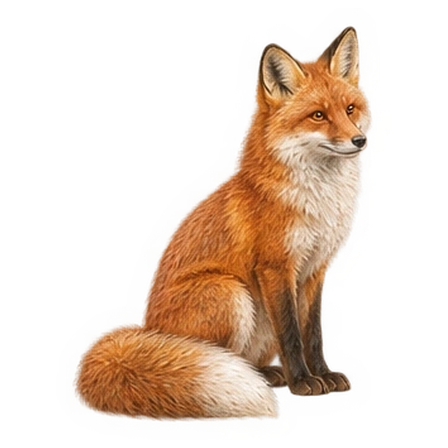
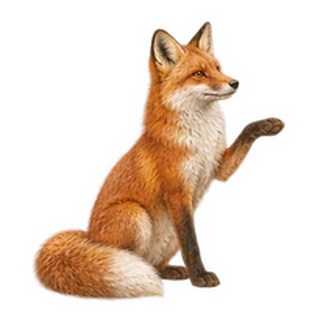
 Red fox
Watches the fishbowl
Bats golden acorns, watches the goldfish bowl, and swishes a fiery brush.
37 pets for Windows, macOS, Linux and your browser
A little company on your screen
Pick a pet to walk along your Windows taskbar, perch below the menu bar on your Mac, or keep you company in your Linux terminal or browser. Each one has a favorite toy.
Choose a pet
Pets roam right across the page: drag, pet, or double-click to toss a toy!
Windows 10/11 · your pet walks along the taskbar
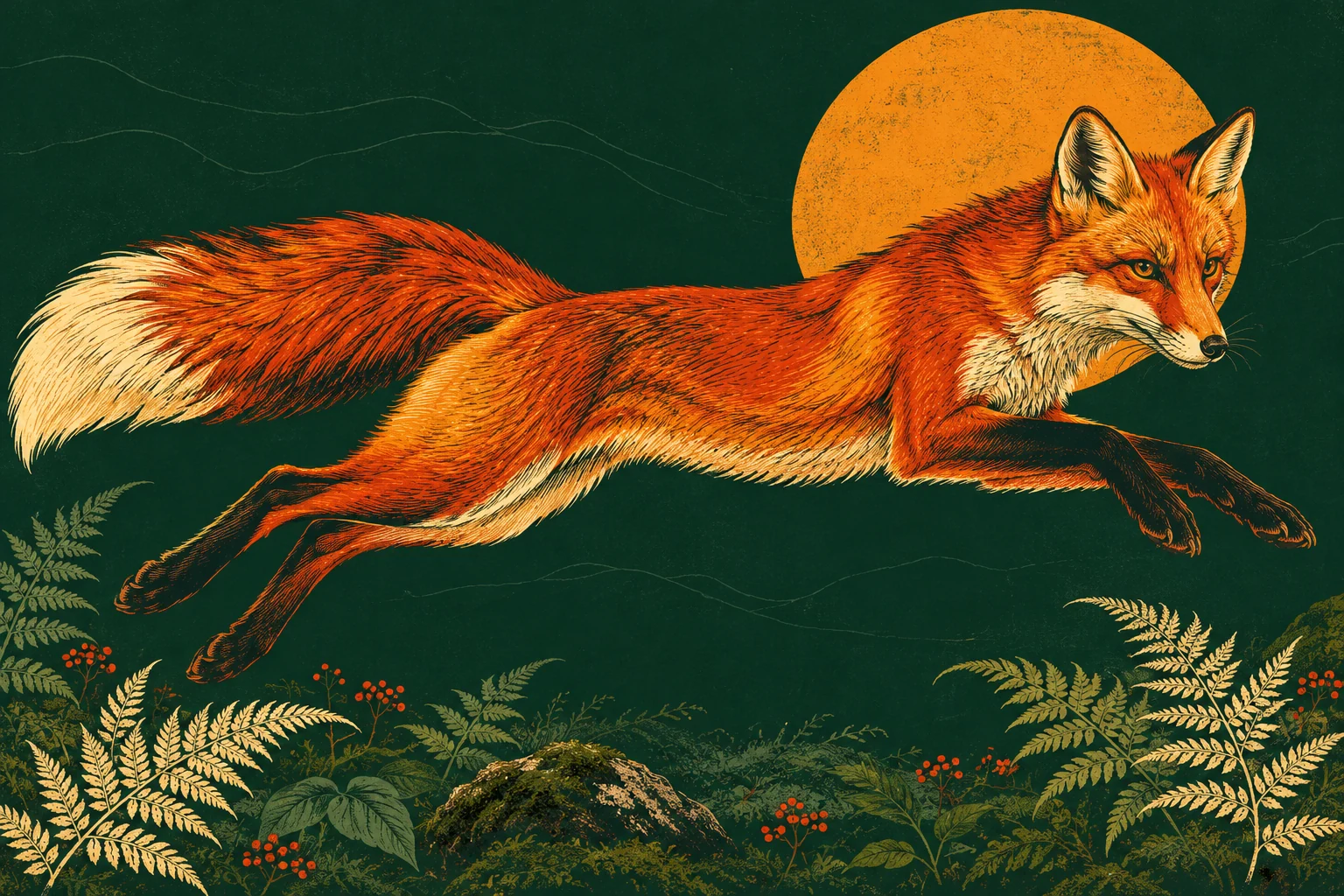
Animals (37)
Meet the pets37
Choose an animal to see it on the shelf and in the studio. Hover over its card to see a second pose and read its greeting.
Red fox
Watches the fishbowl
Bats golden acorns, watches the goldfish bowl, and swishes a fiery brush.
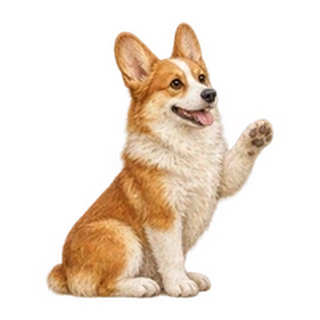
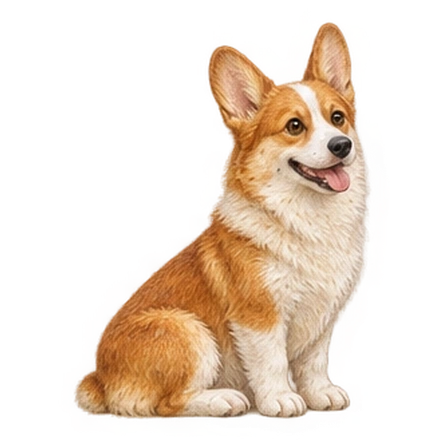 Corgi
Turbo trot · Treat bowl
Little legs, tall ears, and happy zoomies along the bottom of your screen.
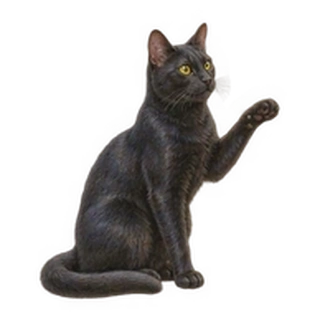
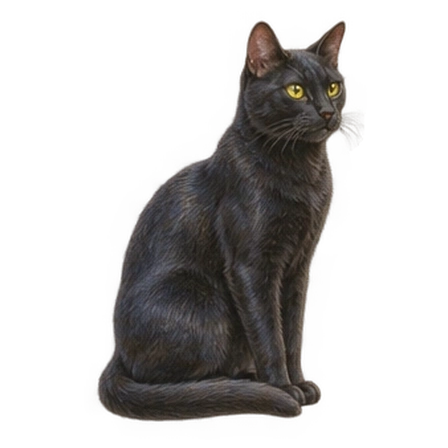 House cat
5 coats · Scratching post
Settles on the taskbar and sharpens its claws on the scratching post. Choose from five coat colors.
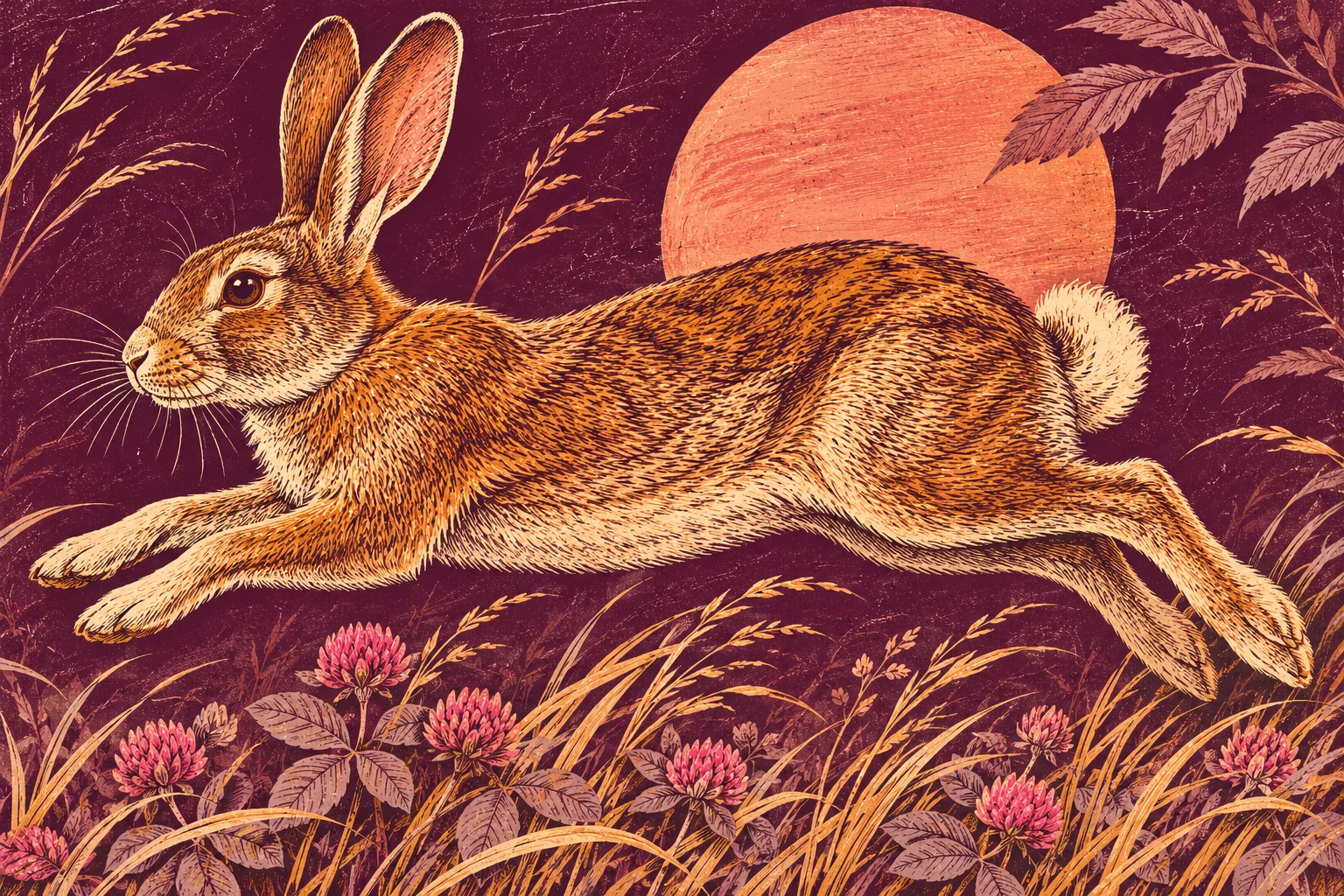
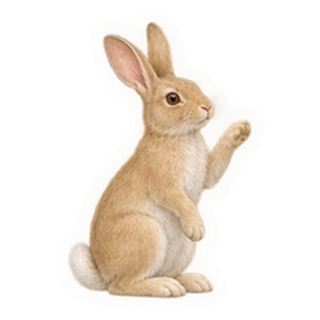
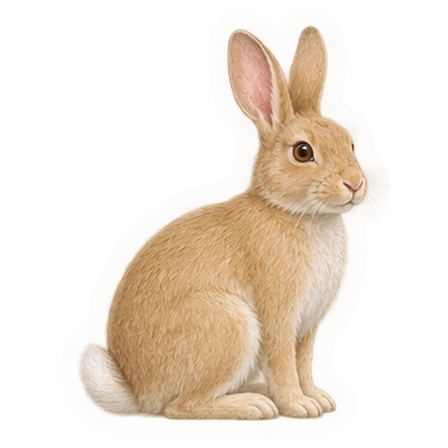 Rabbit
High jumper · Carrot
Hops after a crunchy carrot, then stops for a nibble.
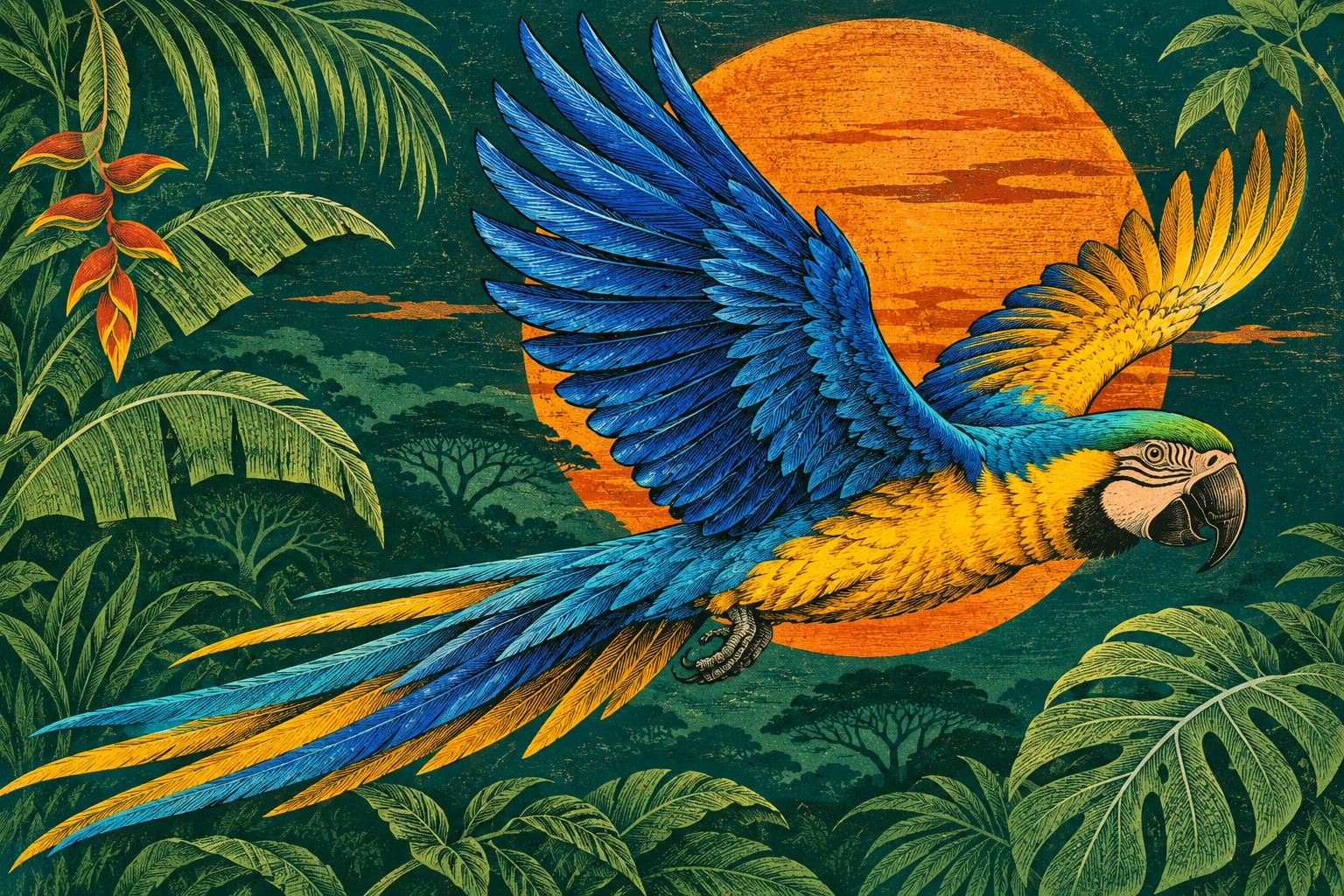
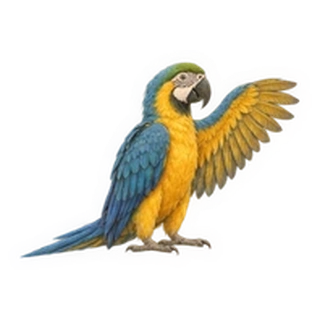
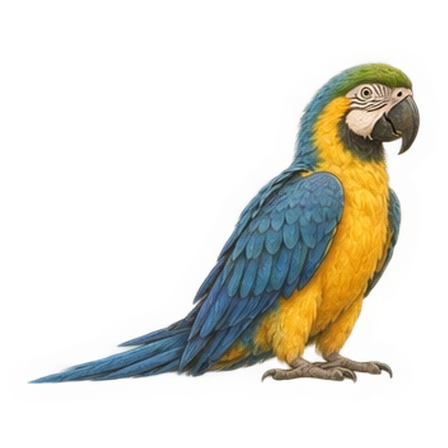 Parrot
Music lover · Perch
Flaps bright blue-gold wings from a desk perch whenever music kicks in.
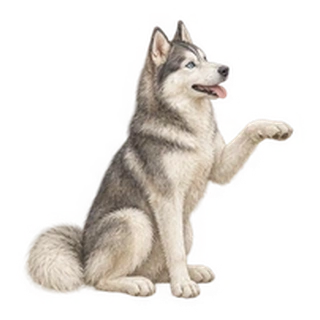
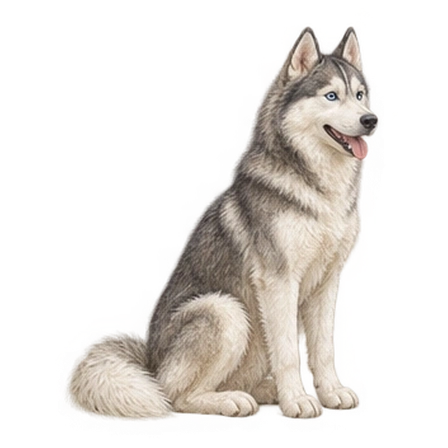 Husky
Deadline soloist
Howls a little solo when a build drags on or a test fails.
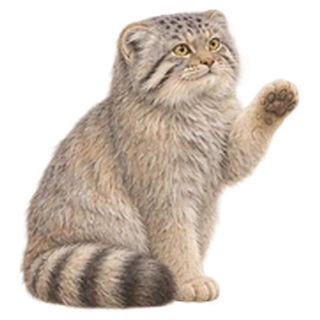
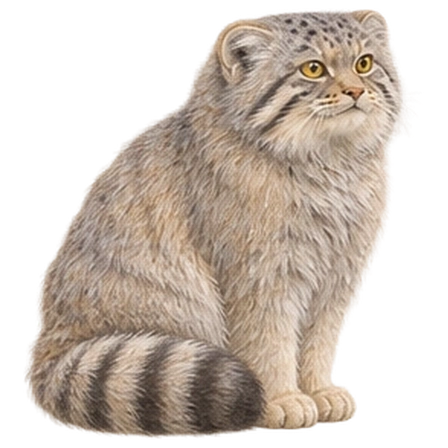 Pallas’s cat
Tail warmer · Cozy box
Warms its paws on its thick tail and claims every cardboard box in sight.
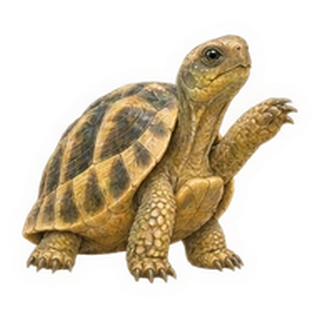
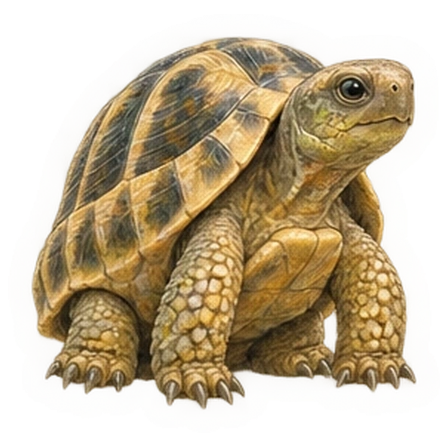 Turtle
Steady pace · Fishbowl
Takes its time by the fishbowl. A good excuse for a short break.
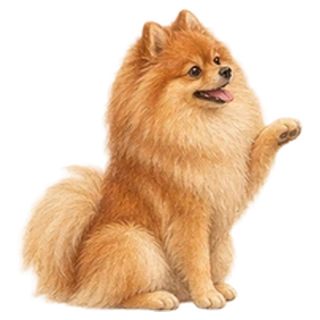
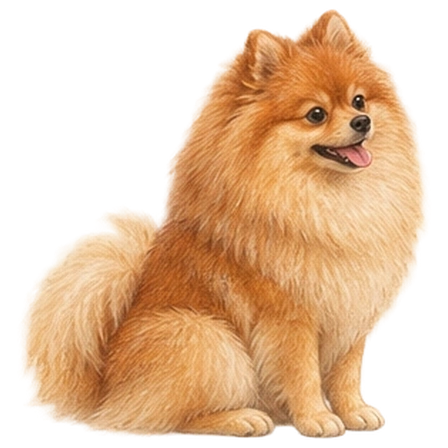 Pomeranian
Fluffy plume · Frisbee
A little cloud of fluff that chases a flying disc across your windows.
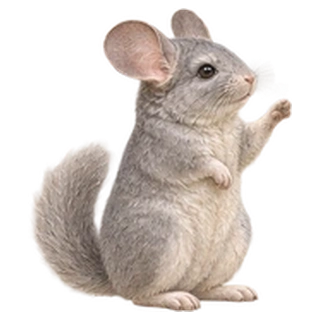
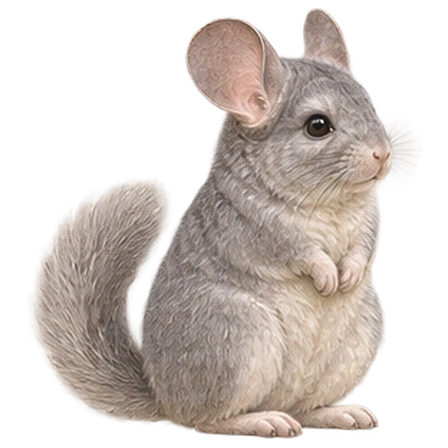 Chinchilla
Springy leaps
Perks up its velvet ears, then springs into the air.
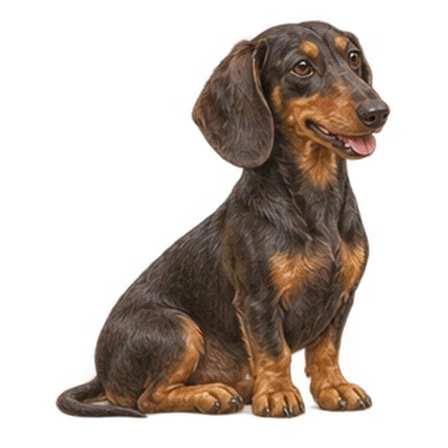 Dachshund
Cursor tracker · Water cup
Follows your cursor nose-first, with the occasional detour to the food bowl.

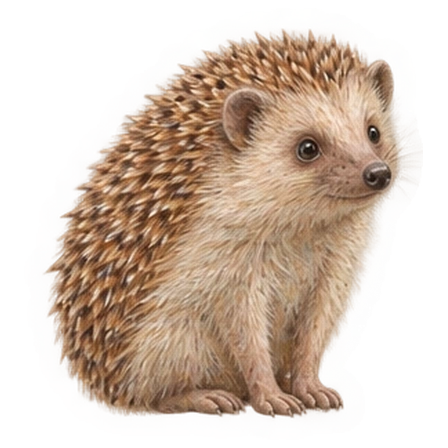 Hedgehog
Water break minder
Nudges the water glass when it’s time to take a break.

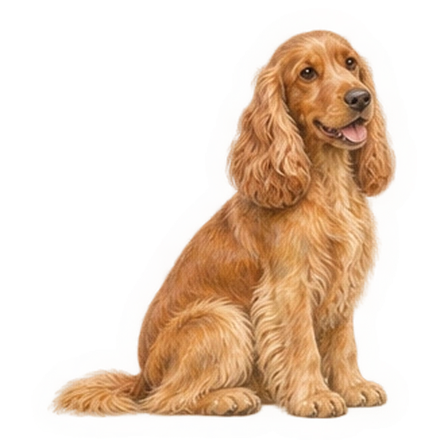 Cocker spaniel
Silky ears · Long walks
Long silky ears swing in rhythm when music plays through your speakers.
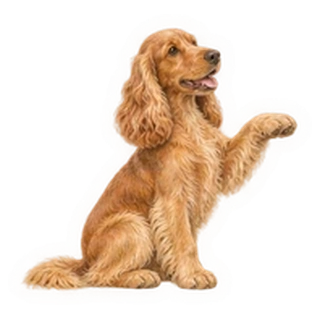
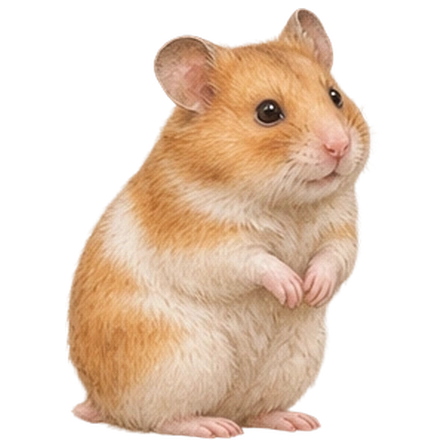 Hamster
Typing drummer
Stuffs its cheeks with snacks and drums along as you type.

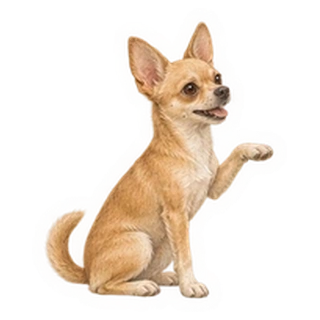
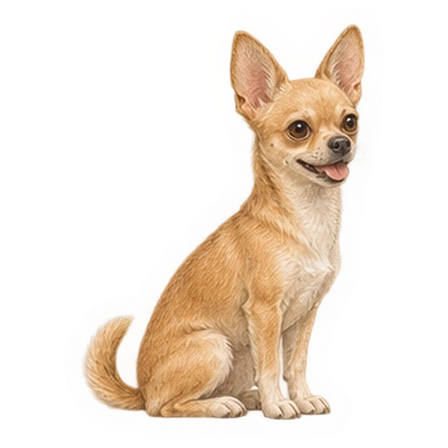 Chihuahua
Pocket taskbar guard
A pocket-sized guard who patrols every corner of the screen.
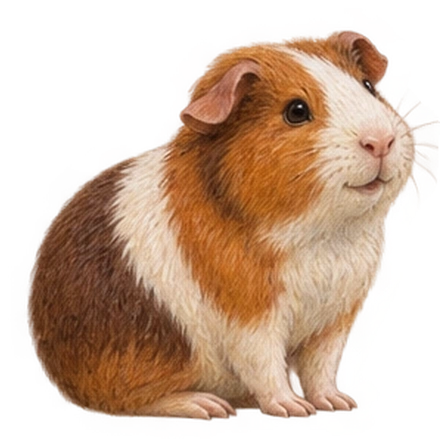 Guinea pig
Happy wheeks · Bowl
Wheeks excitedly by its snack bowl whenever your mouse springs to life.

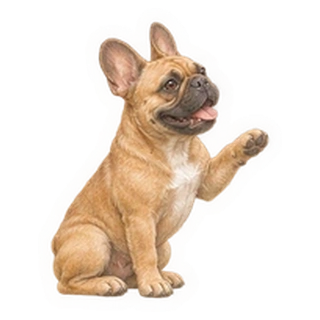
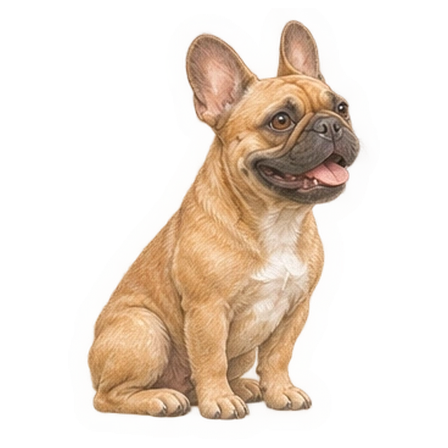 French bulldog
Nap champion · Cushion
Snorts happily on a desk cushion and curls up quietly during voice calls.
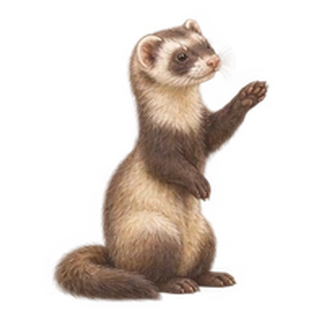
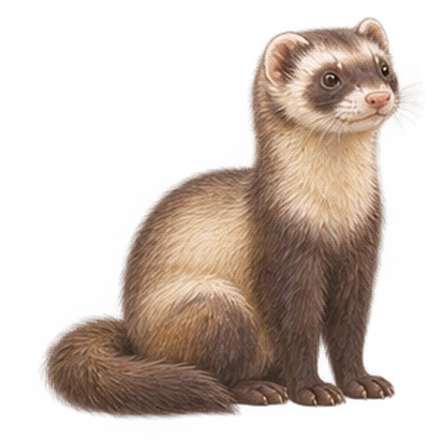 Ferret
Multi-monitor explorer
Curious desk noodle darting from monitor to monitor and peeking out of boxes.
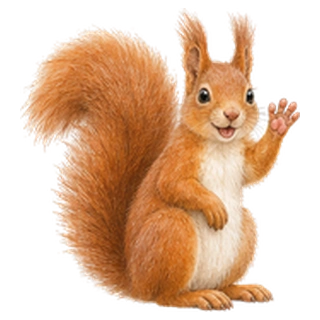
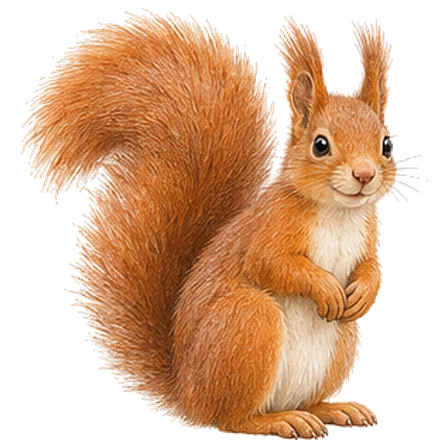 Squirrel
Bushy tail · Acorn
Stashes acorns in screen corners and hops across windows like branches.
 Panda
Bamboo · Cushion
Munches bamboo, then flops onto its back for a lazy roll.

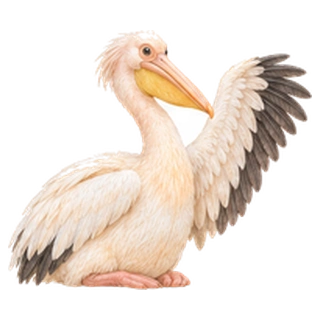
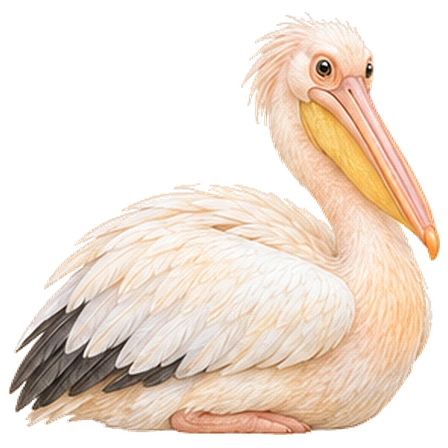 Pelican
Beak pouch · Fishbowl
Waddles along the taskbar, beak held high like a mail carrier with a full bag.
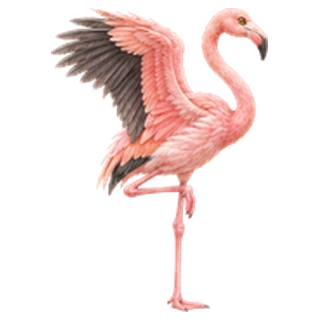
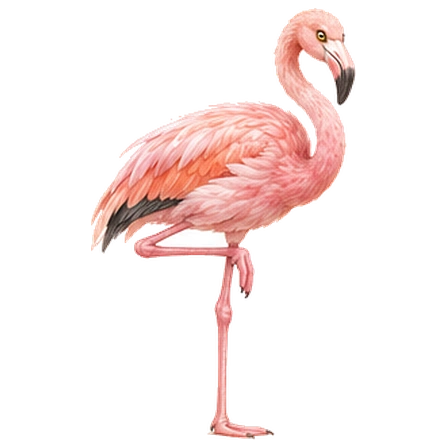 Flamingo
One-leg pose · Glass
Balances gracefully on one leg while you finish that long email.
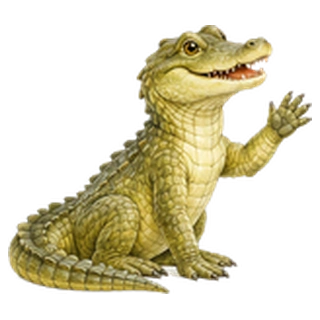
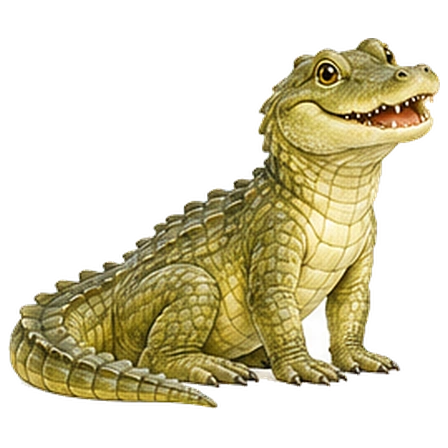 Little crocodile
Big grin · Aquarium
Grins with every tooth, yet only ever bites the bugs in your code.
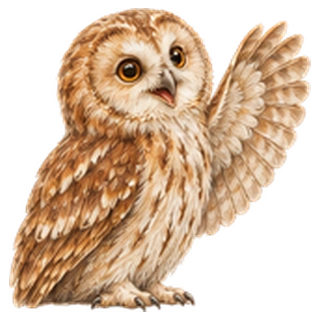
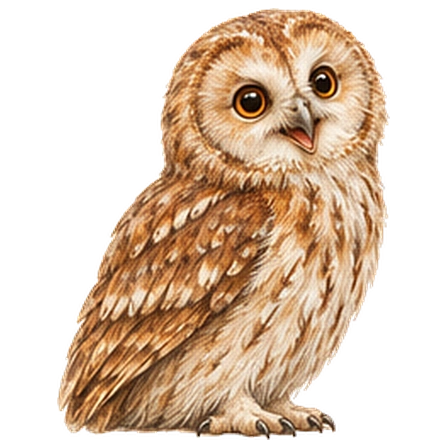 Owl
Night shift · Box
Keeps a watchful eye on your desk when you work past midnight.
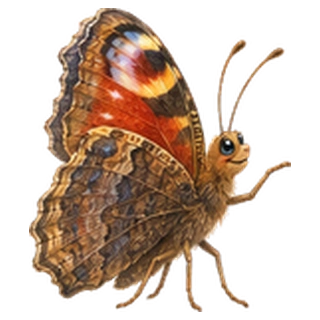
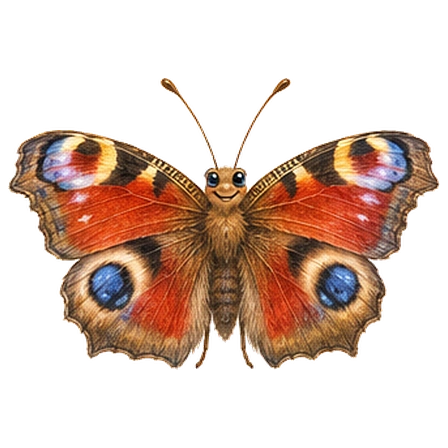 Butterfly
Flutters · Glass
Flutters over your windows and lands on the cursor whenever you pause.
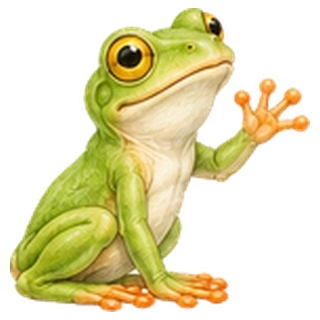
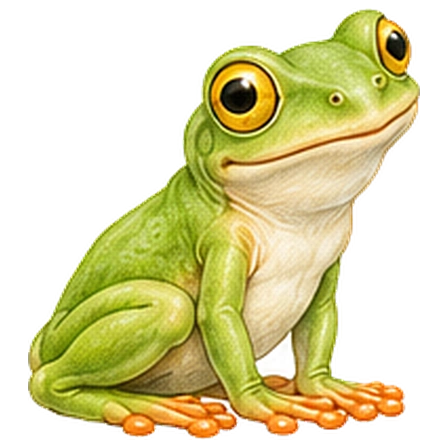 Frog
Sticky tongue · Aquarium
Snaps at imaginary flies, then jumps into the fishbowl for a break.
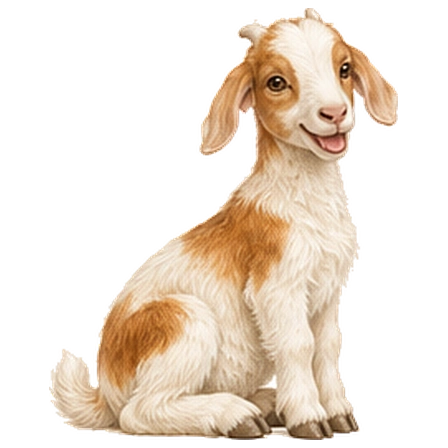 Baby goat
Pronking · Box
Bounces on all four hooves for joy and climbs every box in sight.

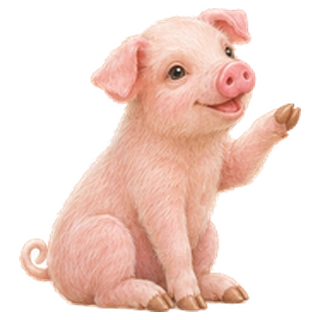
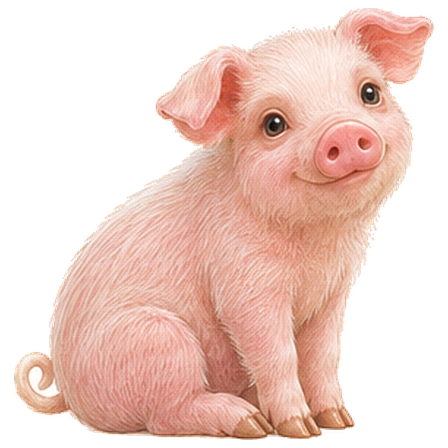 Mini pig
Snout · Bowl
That pink snout can sniff out snacks through any browser window.
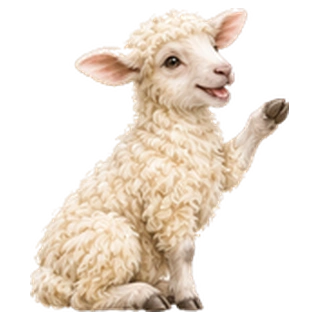
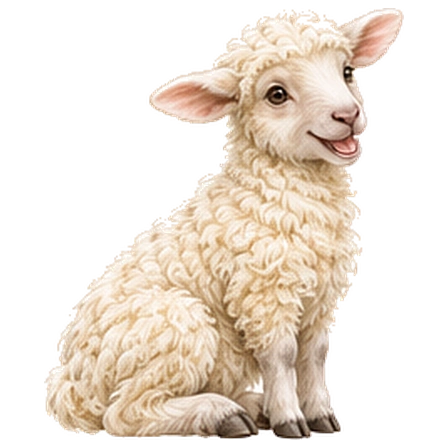 Lamb
Woolly cloud · Cushion
A little cloud of wool to count when it’s finally time for bed.
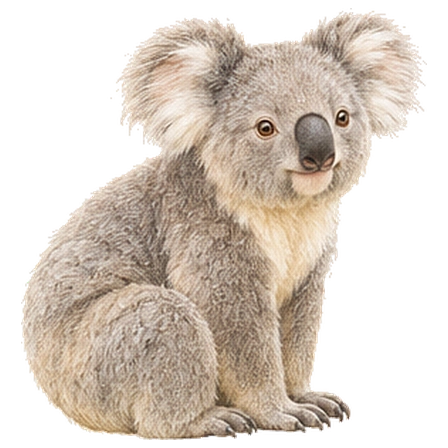 Koala
Hugger · Cushion
Hugs the edge of a window like a eucalyptus trunk and naps most of the day.

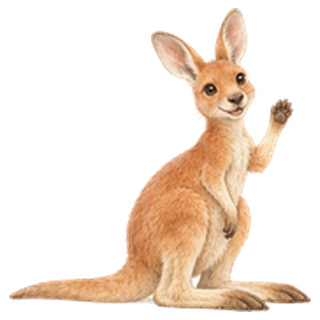
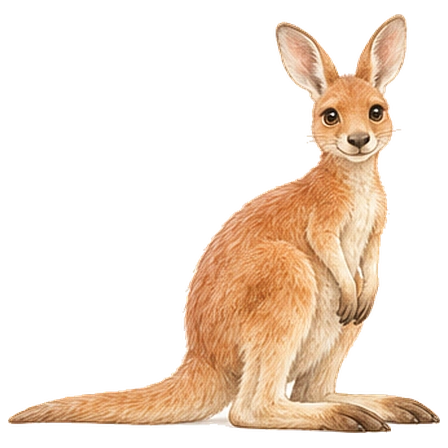 Kangaroo
Big bounds · Box
Bounds from edge to edge of the screen and keeps your tabs in her pouch.
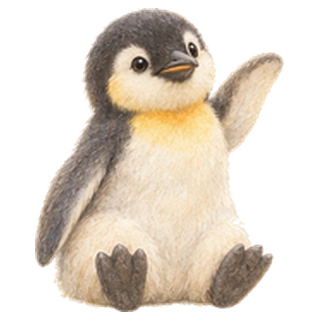
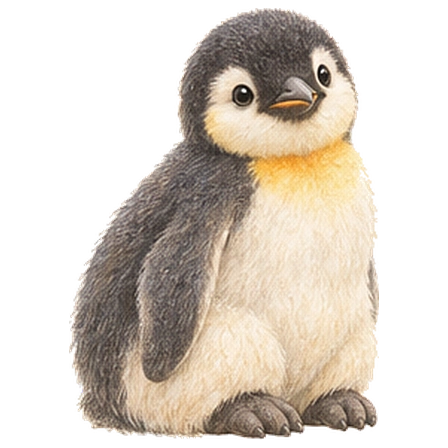 Penguin
Belly slide · Aquarium
Waddles along the taskbar and belly-slides when your build goes green.
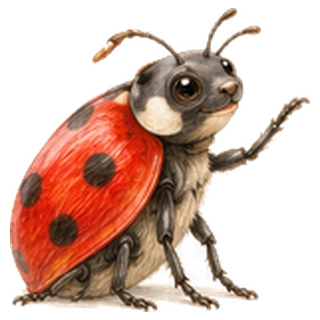
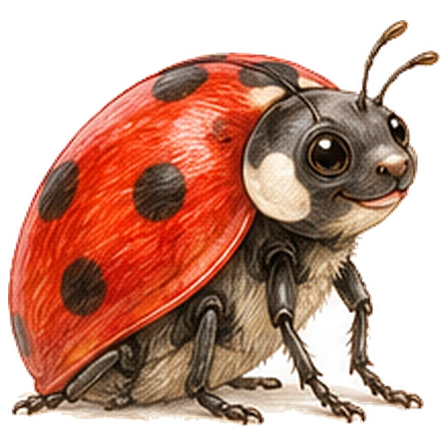 Ladybug
Good luck · Glass
Brings luck to every commit and crawls along the edges of your windows.
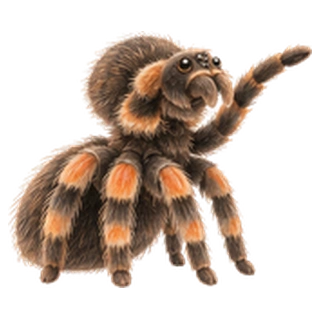
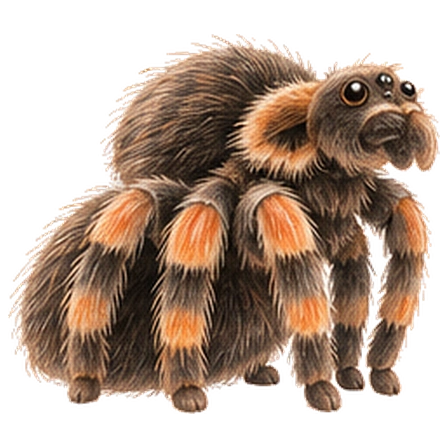 Tarantula
Fluffy · Box
Fluffy and not scary at all: the only web he spins is your task list.
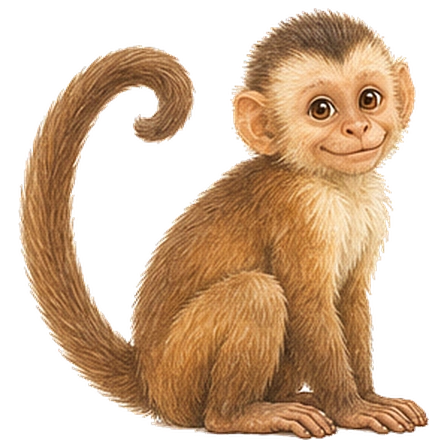 Little monkey
Mischief · Box
Monkeys around on window edges and applauds when the tests finally turn green.

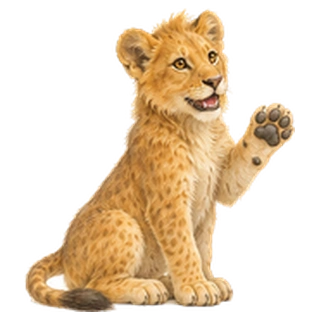
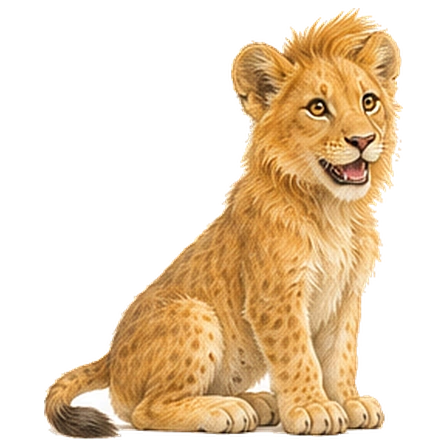 Lion cub
Little king · Cushion
The little king of your taskbar: roars very softly but very proudly.
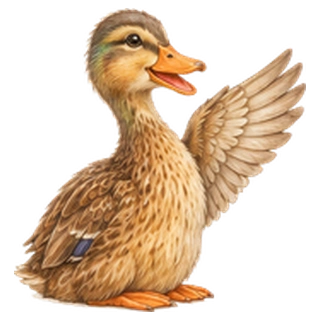
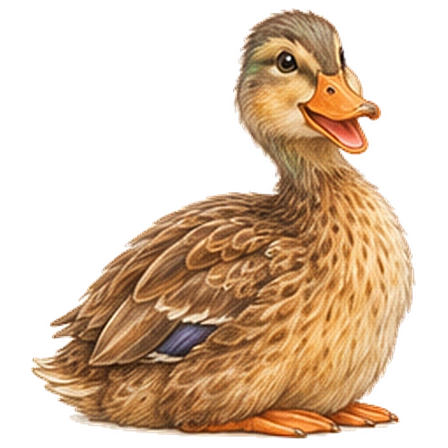 Duckling
Follows cursor · Aquarium
Waddles after your cursor like a duckling following its mother and splashes into every glass it finds.
A little surprise
Can’t choose a pet?
Let chance pick a pet for your shelf and studio. Save your favorites in separate profiles so you can switch between them.
No pets match that filter — try clearing it.
Pet studio
A place for your pet to play
Add a bowl, a fishbowl or a scratching post, then click an item to see what your pet does. Try a different hat or save a new look in a profile.
Items in the scene
Companion reactions
Profiles and appearance
Desktop features
What your pet does while you work
Your pet reacts to what’s happening on your computer. The desktop editions use Rust or Swift, and the browser extension runs in JavaScript. These reactions work locally.
Click-through
Click through to the window below
Clicks on the transparent background go to the app underneath. Click the pet or its toys to interact with them.
Typing privacy
Little paws keep time as you type
On Windows the pet checks when the last input occurred using GetLastInputInfo. In the browser it reacts to keydown events. Neither reads what you type.
System activity
CPU load, music and calls
On Windows your pet fans itself when CPU usage reaches 84%. It dances when audio plays and curls up for a nap while your microphone is active.
Gentle care
Water, stretch breaks and bedtime
Nudges a virtual water glass every hour, reminds you to stretch during long focus blocks, and winds down late at night.
Multiple displays
Extra monitors on Windows, two screen edges on Mac
On Windows your pet can move between monitors. On Mac, choose whether it walks below the menu bar or just above the Dock.
Terminal and Claude Code
Let your pet know how a build went
Send zoomates ok, zoomates fail or zoomates say "..." from a script. Use claude-hooks.json to have your pet react when Claude Code finishes a task.
Available platforms
Install ZooMates
Choose a platform for installation steps, sample commands and the download’s SHA-256 checksum.
For your device
ZooMates for Windows 10 and 11 (x64)
Portable Windows app
Run the EXE to put a pet on the taskbar or at the top of your screen. Use the tray menu to change pets and profiles. Settings are saved in %APPDATA%\ZooMates, and scripts can send commands through a named pipe.
64-bit Windows 10 or 11 · No installer required · Works with multiple monitors
Checksum SHA-256
d81b69198b54c989c0b7df9921871fc62abf794601c43ffc7f11364debd030b1
Step-by-step guide
- Download ZooMates-Windows-x64.exe and move it to a permanent folder (for example, C:\Tools\ZooMates\).
- Double-click the EXE to start ZooMates. If SmartScreen appears, check the download as described below.
- Right-click the paw icon near the clock to choose your pet, hat, cat coat, size (S/M/L), screen edge or profile.
- To start ZooMates when you sign in, press Win + R, enter shell:startup and place a shortcut to ZooMates-Windows-x64.exe in the folder that opens.
Test and run the app in PowerShell
.\ZooMates-Windows-x64.exe --smoke-test
.\ZooMates-Windows-x64.exe
CLI commands & script hooks
Leave ZooMates running and send it a command from PowerShell, Task Scheduler or a build script.
CLI
.\ZooMates-Windows-x64.exe say "Coffee break!"
.\ZooMates-Windows-x64.exe ok "Build passed"
.\ZooMates-Windows-x64.exe profile Alex
SmartScreen and PowerShell integration
The EXE is unsigned. Before running it, you can use Get-FileHash in PowerShell to compare its SHA-256 checksum with the one listed here. For build notifications, see integrations/zoomates.ps1 and integrations/claude-hooks.json in the project.
For your device
ZooMates for macOS 13+ (Apple Silicon & Intel)
Swift and AppKit source code
A native Mac app built with Swift and AppKit. Your pet walks below the menu bar or above the Dock. Profiles are saved in ~/Library/Application Support/ZooMates/.
macOS 13+ · Swift 5.9+ & Xcode Command Line Tools (xcode-select --install)
Checksum SHA-256
8bbdf589af5247a9636f8133e860c739602da48a94416bba3ae9af953c564403
Step-by-step guide
- If you haven’t installed the Xcode Command Line Tools yet, run xcode-select --install in Terminal.
- Download and extract ZooMates-macOS-Source.tar.gz, then open Terminal inside the ZooMates-macOS folder.
- Run bash build_macos.sh to build ./dist/ZooMates.app with all 37 pets.
- Run open ./dist/ZooMates.app and look for the paw icon in the menu bar. To keep the app in Applications, drag ZooMates.app into /Applications.
Unpack, build, and launch
tar -xzf ZooMates-macOS-Source.tar.gz
cd ZooMates-macOS
bash build_macos.sh
open ./dist/ZooMates.app
CLI commands & script hooks
While ZooMates is running, send it a message or a build result from Terminal.
CLI
./dist/ZooMates.app/Contents/MacOS/ZooMates say "Time to stretch!"
./dist/ZooMates.app/Contents/MacOS/ZooMates ok
./dist/ZooMates.app/Contents/MacOS/ZooMates fail
Menu bar, Dock and shell commands
Click the paw in the menu bar to choose where your pet walks. To send notifications from Zsh, source integrations/zoomates.sh. If the app is outside /Applications, set ZOOMATES_BIN to the executable inside the app bundle.
For your device
ZooMates for Linux terminals
Rust source code
The Rust app includes full-color artwork for all 37 pets. Profiles live in ${XDG_CONFIG_HOME:-$HOME/.config}/zoomates, and a Unix socket lets you control the pet from a second terminal.
Linux · Rust 1.82+ & Cargo · UTF-8 true-color terminal (at least 32×12)
Checksum SHA-256
b550caf117dac2db6f5164ca104867b1ed9a3b7ab61ff4461b2572fb38304801
Step-by-step guide
- Install Rust 1.82+ and Cargo if needed (for instance via https://rustup.rs).
- Download and extract ZooMates-Linux-Source.tar.gz, then open the ZooMates-Linux directory in your terminal.
- Run bash build_linux.sh to build ./dist/bin/zoomates with embedded terminal artwork.
- Start ./dist/bin/zoomates in a true-color terminal. To add it to the applications menu, put the binary on your PATH and copy zoomates.desktop into ~/.local/share/applications/.
Build and start
tar -xzf ZooMates-Linux-Source.tar.gz
cd ZooMates-Linux
bash build_linux.sh
./dist/bin/zoomates --smoke-test
./dist/bin/zoomates
CLI commands & script hooks
Leave the pet running in one terminal and send it commands from another.
CLI
./dist/bin/zoomates pet fox
./dist/bin/zoomates say "Tests passed"
./dist/bin/zoomates ok
./dist/bin/zoomates profile Alex
Terminal colors and shell notifications
Use a UTF-8 terminal with true-color support, such as Kitty, Alacritty, WezTerm or GNOME Terminal. To receive command results, source integrations/zoomates.sh in Bash or Zsh. Set ZOOMATES_BIN if the executable is outside your PATH.
For your device
ZooMates browser extension
Manifest V3 · Isolated Shadow DOM
The same ZIP works with Chrome, Edge, Brave, Opera, Vivaldi and Firefox. The pet walks along web pages. Its interface uses Shadow DOM, and your pet’s settings stay in your browser.
Chromium 121+ or Firefox 121+ · Install manually from the ZIP
Checksum SHA-256
61977ffaf6c21b6f74f221c0355c62ba254b203eba064c6c151a3f91006f6ed1
Chrome, Edge, Brave, Opera & Vivaldi
- Extract ZooMates-Browser-Extension.zip to a folder you can keep. Find the folder that contains manifest.json.
- Enter chrome://extensions in the address bar. In Edge, use edge://extensions. In Brave, use brave://extensions.
- Turn on Developer mode.
- Click “Load unpacked” and choose the extracted folder containing manifest.json.
- Pin the paw icon to the toolbar and reload an open website (F5). Click your pet to stroke it, or double-click to toss a toy.
Mozilla Firefox 121+
- Extract ZooMates-Browser-Extension.zip into a folder.
- Open about:debugging#/runtime/this-firefox in the address bar.
- Click “Load Temporary Add-on…” and select manifest.json inside the extracted folder.
- Reload an ordinary web page (https://...). Use the extension popup to hide your pet on a particular site.
Temporary add-ons and browser pages
Firefox removes temporary add-ons when you quit. To use ZooMates again, load manifest.json the same way next time. Pets appear on regular websites. Try an http:// or https:// page instead of a new tab or a browser settings page.
Common questions
Privacy and setup
What can a ZooMates pet do?
Choose from 37 illustrated pets, each with a favorite toy. Cats have five coat colors. You can change headwear, save profiles and send your pet messages from the command line. Desktop pets also react to system activity.
Does bongo mode record what I type?
No. Windows uses GetLastInputInfo to check when the last input occurred. The browser extension responds when a keydown event fires. Neither records the key or the text you entered.
Does ZooMates send telemetry?
No. Your pet’s settings and activity counters stay on your device. The desktop apps use local storage, and the extension and web studio store profiles in your browser.
Why might SmartScreen warn me when I open the Windows download?
The Windows download is unsigned, so SmartScreen may show a warning. To check your copy, compare the file’s SHA-256 checksum with the one in the Windows download section before running it.
Can I keep separate pets for different people or projects?
Yes. Use profiles in the Windows tray menu, the macOS menu bar or the browser extension. On Linux, use zoomates profile Alex. Each profile keeps its own pet and settings.
How can my pet react to builds or Claude Code tasks?
The integrations/ folder contains claude-hooks.json for Claude Code, zoomates.ps1 for PowerShell and zoomates.sh for Bash or Zsh. Scripts can also call zoomates ok, zoomates fail or zoomates say "message".
Help keep ZooMates running
ZooMates is free and has no ads or trackers. Even a dollar helps pay for the domain and hosting. You can also share the project with a friend.